


AutoCAD is one of the most popular computer-aided design (CAD) software tools. It's popular in architecture, engineering, construction, and product design. To create accurate digital drawings, improve drafting efficiency, and develop professional technical design skills, you should master AutoCAD commands and shortcuts. Here's everything you need to know about them.
| Command | Shortcut | Description |
|---|---|---|
| LINE | L | Creates straight line segments between two points |
| CIRCLE | C | Creates circles using centre and radius or diameter |
| POLYLINE | PL | Creates connected lines and arcs as one editable object |
| MOVE | M | Repositions selected objects |
| COPY | CO | Duplicates selected objects |
| ROTATE | RO | Rotates objects around a base point |
| SCALE | SC | Resizes objects proportionally |
| TRIM | TR | Removes unwanted parts of objects |
| DIMENSION | DIM | Adds measurement annotations |
| LAYER | LA | Manages object visibility and properties |
| ZOOM | Z | Adjusts drawing magnification |
| PAN | Mouse wheel drag | Moves the drawing view without changing scale |


Understanding AutoCAD Commands
AutoCAD commands are key to creating accurate digital drawings and technical designs. Users need to understand how these commands work so they can produce CAD work more efficiently. However, before you dive in, it's worth knowing what they are and what they do.
Definition and Purpose of AutoCAD Commands
AutoCAD commands are instructions you can use to create, edit, and manage technical drawings.³ Rather than manually manipulating elements, users can input commands to generate precise geometric shapes, adjust drawing properties, and organise projects into components. Commands are a key part of AutoCAD's functionality, enabling users to produce drawings efficiently. Using these AutoCAD commands, even as a beginner, can help you better understand how the software works.
The Role of Commands in Enhancing Design Efficiency
The role of AutoCAD comments is to increase drafting speed and accuracy by automating repetitive design tasks.⁶ Users can quickly activate tools using command shortcuts of the command line interface, rather than navigating through multiple menus. This workflow speeds up production while maintaining design precision. This is particularly important with large construction or engineering drawings.
Overview of the Command Line Interface
The AutoCAD command line is a dynamic interface. Users can type commands directly into the software. The command prompt also suggests available tools as you type, helping you locate commands quickly.³ Learning how to use the command line improves workflow control.
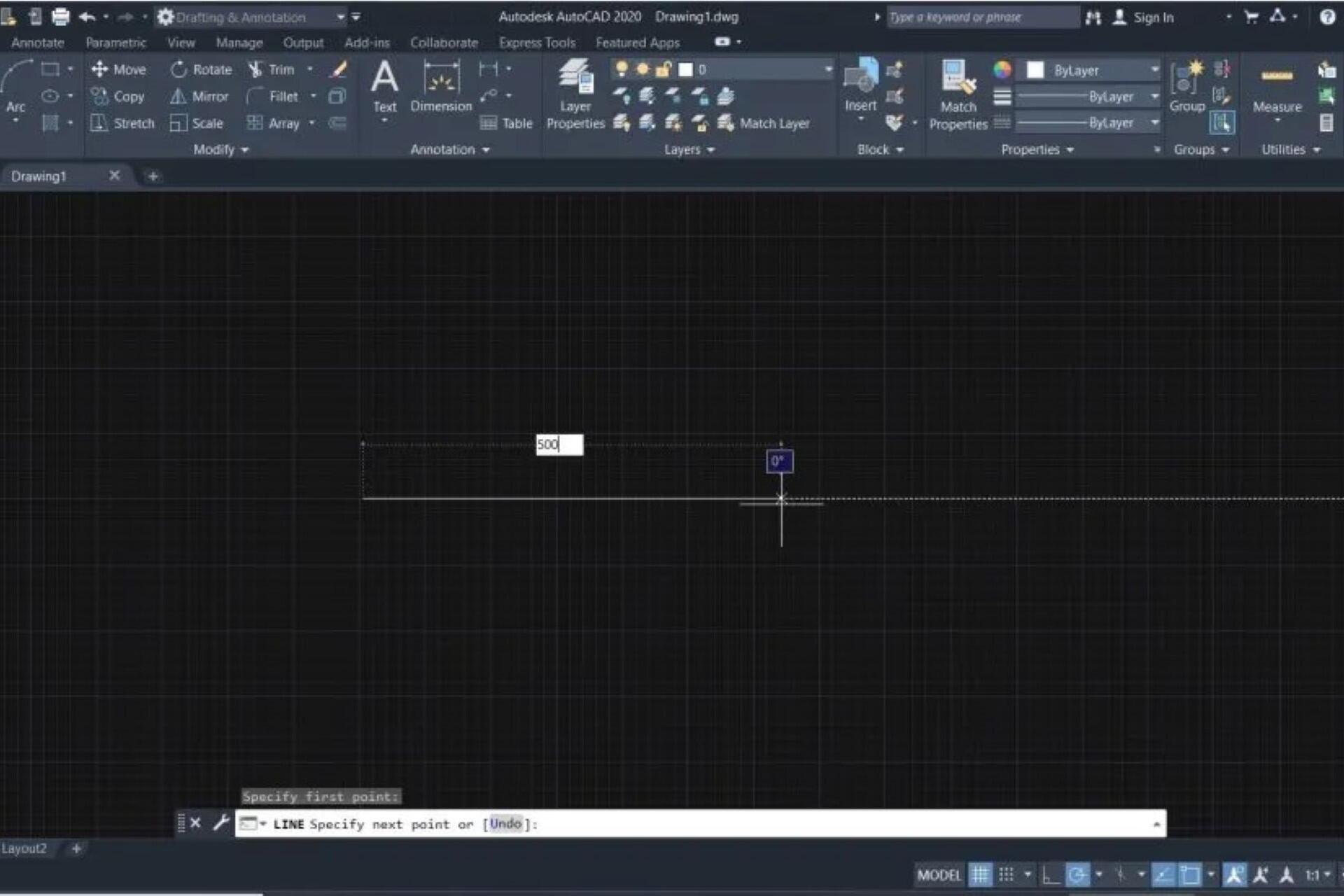
Essential AutoCAD Commands and Their Functions
| Command Category | Purpose | Examples |
|---|---|---|
| Drawing Commands | Create basic shapes and geometry | LINE, CIRCLE, ARC, POLYLINE |
| Editing Commands | Modify or adjust existing objects | MOVE, COPY, ROTATE, SCALE |
| Annotation Commands | Add measurement and text details | TEXT, DIMENSION, LEADER |
| Layer Management Commands | Organise drawing elements | LAYER, LAYERSTATE |
| Viewing Commands | Navigate and adjust drawing views | ZOOM, PAN, VIEW |
There are plenty of tools, but a core set of commands is used regularly.⁷ You can create, modify, and organise drawings more efficiently with these ones.
Drawing Commands
Drawing commands are used to create basic shapes and geometry.³ These are the foundations of AutoCAD drawings, so it's worthwhile starting with them. Use them for drafting layouts, technical components, and construction plans.

| Command | Shortcut | Function | Common Uses |
|---|---|---|---|
| LINE | L | Creates straight line segments | Structural outlines, technical layouts |
| CIRCLE | C | Creates circles using centre and radius | Mechanical parts, symbols |
| ARC | ARC | Creates curved segments | Rounded corners, curved design features |
| POLYLINE | PL | Creates connected lines and arcs as one object | Complex shapes, editable outlines |
LINE
The LINE command creates straight segments between two defined points.
Type L → Press Enter → Click first point → Click second point → Press Enter
Drawing the straight walls of a floor plan or the edges of a mechanical plate.
CIRCLE
The CIRCLE command generates circular shapes using centre and radius or diameter inputs.
Type C → Press Enter → Select centre point → Enter radius value
Creating bolt holes or circular columns in architectural drawings.
ARC
The ARC command creates curved segments between specified points.
Type ARC → Press Enter → Select start point → Select second point → Select end point
Drawing a curved doorway opening or a rounded machine component edge.
POLYLINE
The POLYLINE command creates connected lines and arcs as a single editable object.
Type PL → Press Enter → Click starting point → Continue selecting points → Press Enter to finish
Drawing a continuous wall outline that can be offset or modified as one object.
Editing Commands
The editing commands are used to modify and redefine objects you create.³ These AutoCAD commands can adjust layouts, correct mistakes, and improve drawing accuracy. Use them to maintain professional drafting standards.
| Command | Shortcut | Function | Common Uses |
|---|---|---|---|
| MOVE | M | Moves objects to new locations | Layout adjustments, repositioning elements |
| COPY | CO | Duplicates selected objects | Repeating design elements |
| ROTATE | RO | Rotates objects around a base point | Alignment adjustments |
| SCALE | SC | Changes object size proportionally | Resizing design elements |
| TRIM | TR | Removes unwanted parts of objects | Cleaning drawing intersections |
| OFFSET | O | Creates parallel or concentric copies | Wall thickness, spacing design |
MOVE
The MOVE command repositions selected objects within a drawing.
Type M → Press Enter → Select object → Press Enter → Select base point → Select destination point
Repositioning walls, symbols, or components within a floor plan or technical drawing.
COPY
The COPY command duplicates selected objects without removing the original.
Type CO → Press Enter → Select object → Press Enter → Select base point → Select placement location
Repeating design elements such as windows, fixtures, or mechanical components.
ROTATE
The ROTATE command turns objects around a selected base point.
Type RO → Press Enter → Select object → Press Enter → Select base point → Enter rotation angle
Adjusting orientation of equipment layouts or architectural elements.
SCALE
The SCALE command resizes objects proportionally based on a reference point.
Type SC → Press Enter → Select object → Press Enter → Select base point → Enter scale factor
Resizing drawing components to match project measurements or layout adjustments.
Annotation Commands
| Command | Shortcut | Function | Common Uses |
|---|---|---|---|
| TEXT | TEXT / DT | Adds single or multi-line text | Labels, notes, descriptions |
| DIMENSION | DIM | Adds measurement information | Technical measurements |
| LEADER | LE | Creates leader lines with notes | Callouts and drawing explanations |
Annotation commands can add text, measurements, and explanatory notes.³ You can use them to communicate technical information clearly to ensure designs can be interpreted correctly by engineers, architects, and construction team. Annotation is key to drawing readability and to professional documentation standards.

TEXT
The TEXT command inserts written labels or notes into drawings.
Type TEXT → Press Enter → Select insertion point → Enter text height → Type content → Press Enter
Adding room names, component labels, or design notes.
DIMENSION
The DIMENSION command adds measurement annotations between selected points.
Type DIM → Press Enter → Select first point → Select second point → Place dimension line
Displaying accurate distances, lengths, or diameters in technical drawings.
LEADER
The LEADER command creates callout lines connecting notes to drawing features.
Type LE → Press Enter → Select starting point → Select arrow direction → Enter annotation text
Adding explanations or references to specific components or construction details.
Layer Management Commands
You can organise drawing elements into structured categories using the layer management commands.⁴ Layers can control object visibility, colour settings, and line types in complex CAD drawings. Improve your workflow efficiency with proper layer management.
LAYER
The LAYER command manages drawing organisation by assigning objects to structured categories.
Type LAYER → Press Enter → Create new layer → Assign colour or properties → Apply to objects
Separating walls, electrical systems, and annotations for clearer project organisation.
LAYERSTATE
The LAYERSTATE command saves and restores layer visibility and settings.
Type LAYERSTATE → Press Enter → Save current layer setup → Restore when needed
Switching between presentation layouts and working design views.
Viewing Commands
Viewing commands help you navigate drawings without altering them.³ These commands include common viewing tools like zoom, pan, and switching between saved perspectives. They're particularly useful for complex layouts.
| Command | Shortcut | Function | Common Uses |
|---|---|---|---|
| ZOOM | Z | Adjusts drawing magnification | Viewing detail or full drawings |
| PAN | Mouse Wheel Hold / P | Moves view without changing drawing | Navigating large drawings |
| VIEW | VIEW | Saves and restores preset views | Managing multiple drawing perspectives |
ZOOM
The ZOOM command adjusts the magnification of the drawing workspace.
Type Z → Press Enter → Select zoom option or window area → Press Enter
Viewing detailed design areas or reviewing entire project layouts.
PAN
The PAN command moves the drawing view without changing scale or position of objects.
Hold mouse wheel → Drag cursor to reposition drawing view
Navigating large construction or engineering drawings efficiently.
VIEW
The VIEW command saves and restores preset viewing positions.
Type VIEW → Press Enter → Save current view → Restore saved view when required
Managing multiple perspectives in complex or multi-section drawings.
Leveraging AutoCAD Shortcuts and Hotkeys
AutoCAD shortcuts and hotkeys let you quickly activate commands with your keyboard.¹ They reduce reliance on menus and make everything go more quickly. Learn shortcuts to work more efficiently..
Learning AutoCAD command shortcuts can significantly improve drafting speed and workflow efficiency. Most professionals rely heavily on keyboard input rather than menus because it reduces repetitive clicking and improves design precision. Common AutoCAD command shortcuts include:
L – Creates a line
C – Creates a circle
PL – Creates a polyline
M – Moves selected objects
CO – Copies objects
TR – Trims unwanted elements
O – Offsets objects parallel to an existing shape
Z – Activates zoom controls
Command aliases allow users to customise shortcuts and tailor AutoCAD software commands to their personal workflow, making drafting faster and more efficient.
Importance of Keyboard Shortcuts in Speeding Up Tasks
Keyboard shortcuts save time in any software. In AutoCAD, you can activate tools instantly.¹ As users become more experienced, they'll typically use shortcuts increasingly to speed things up.
Commonly Used Shortcuts
| Shortcut | Command | Purpose |
|---|---|---|
| Ctrl + N | New Drawing | Creates new drawing file |
| Ctrl + S | Save | Saves drawing progress |
| Ctrl + P | Opens print/plot settings | |
| L | LINE | Starts line drawing command |
| C | CIRCLE | Starts circle drawing command |
| PL | POLYLINE | Starts polyline drawing |
| M | MOVE | Moves objects |
| CO | COPY | Copies objects |
| TR | TRIM | Removes excess geometry |
| O | OFFSET | Creates parallel geometry |
| Z | ZOOM | Controls drawing magnification |
AutoCAD users often use shortcuts for drawing, editing, and file management.⁹ Shortcuts can help you quickly access AutoCAD commands without needing to go through toolbars. Start with common shortcuts to speed up your technical drawings without sacrificing accuracy.
General Shortcuts
- Ctrl + N — Create a new drawing
- Ctrl + O — Open an existing drawing file
- Ctrl + S — Save current drawing
- Ctrl + P — Open print or plot settings
- Ctrl + Z — Undo last action
- Ctrl + Y — Redo last action
- Ctrl + C — Copy selected objects
- Ctrl + V — Paste copied objects
Drawing Shortcuts
- L — Start LINE command
- C — Start CIRCLE command
- PL — Start POLYLINE command
- ARC — Start ARC command
- REC — Start RECTANGLE command
- H — Start HATCH command
Editing Shortcuts
- M — Move objects
- CO — Copy objects
- RO — Rotate objects
- SC — Scale objects
- TR — Trim objects
- EX — Extend objects
- MI — Mirror objects
- O — Offset objects
Customising Shortcuts to Fit Individual Workflows
AutoCAD allows you to customise keyboard shortcuts. Custom shortcuts can help you even further streamline repetitive tasks. If you're working on specialised design projects, these are game-changers.
Utilising Command Aliases for Efficiency
Command aliases are shortened versions of AutoCAD commands.⁵ You can use them to activate tools quickly. These further increase drafting speed and the number of keystrokes required for commands.
Explanation of Command Aliases and Their Benefits
Command aliases replace AutoCAD command names with shorter inputs. They make repetitive drafting tasks even quicker and easier to execute. It's common for professional AutoCAD users to rely on aliases.
Creating and Modifying Aliases Using the acad.pgp File
The acad.pgp file stores AutoCAD command aliases.³ Users can customise command inputs. You can edit this file to create personalised shortcuts.
Examples of Useful Aliases
- L — LINE
- C — CIRCLE
- PL — POLYLINE
- M — MOVE
- CO — COPY
- RO — ROTATE
- TR — TRIM
- O — OFFSET
- MI — MIRROR
- SC — SCALE
Advanced Command Techniques and Best Practices
Advanced AutoCAD techniques involve combining commands to improve your drafting efficiency and accuracy.⁷ You can complete complex drawing tasks while maintaining professional design standards and minimising issues. Understanding advanced command workflows can help you go from beginner to an efficient CAD user.
Combining Commands for Complex Operations
By combining AutoCAD commands, you can perform multiple drafting tasks more efficiently. Create detailed designs while improving drawing accuracy. By learning command combinations, you can reduce repetitive work.
Using Scripts and Macros to Automate Repetitive Tasks
Scripts and macros automate repeated command sequences.⁷ Automation reduces manual input and, you guessed it, increases efficiency. Automation techniques can also minimise design errors.
Troubleshooting Common Command Issues
However, you may encounter issues with commands not responding or objects behaving incorrectly. Troubleshooting is the process of identifying software errors, incorrect settings, or workflow conflicts.⁶ Brush up on troubleshooting techniques before you start playing around with scripts and macros.
Resources for Further Learning
AutoCAD has plenty of learning resources for users.⁶ Develop drafting skills, improve design accuracy, and stay updated with new software features. Training materials can help you build confidence and improve your long-term CAD productivity.
Official AutoCAD Documentation and Tutorials
Look to Autodesk's official documentation for detailed explanations of AutoCAD commands and features.³ Tutors can help you learn the best drafting practices and understand advanced design tools. Use official learning resources to help ensure accurate and reliable skill development.
Online Forums and Communities for Peer Support
Head to online CAD communities to troubleshoot drafting challenges. Forums are a great place to find practical advice and real-world solutions, learn how to use blocks, and gain certifications. Community discussions are a great way to improve your drafting.

Recommended Courses and Certifications for Advanced Learning
Entry-level certification that validates foundational AutoCAD drafting skills, including creating drawings, editing objects, and working with layouts. This certification is designed for beginners or students starting careers in architecture, engineering, or construction.
Advanced certification that demonstrates professional-level AutoCAD skills. It focuses on complex project workflows, collaboration tools, and advanced design drafting techniques, helping professionals stand out in competitive technical design industries.
An official training course designed to prepare users for the Autodesk Certified Professional exam. The course includes practical exercises, skill assessments, and workflow training covering real-world drafting scenarios.
This structured training course prepares learners for Autodesk certification exams while teaching AutoCAD tools, including layout management, annotation tools, and technical drawing workflows. The course typically includes graded assignments and optional certification credentials.
A beginner-to-intermediate course that teaches AutoCAD commands, drafting tools, and workflow techniques through guided tutorials. It is suitable for users who want structured learning and professional development training.
A comprehensive course covering beginner to advanced AutoCAD tools, including layers, blocks, annotation, and 3D modelling. These courses often include project-based learning that simulates real drafting workflows.
edX offers AutoCAD learning programmes covering both 2D drafting and 3D modelling skills. These courses often focus on design principles, engineering workflows, and technical drawing accuracy.
Instructor-led training programmes delivered through official Autodesk partners. These centres provide hands-on training, preparation for professional certification, and industry-standard workflow instruction.
References
- Autodesk. AutoCAD Keyboard Shortcuts Guide. Autodesk, https://damassets.autodesk.net/content/dam/autodesk/www/shortcuts/autocad/AutoCAD-Shortcuts-Guide-Autodesk.pdf. Accessed 11 Feb. 2026.
- Autodesk. “AutoCAD Keyboard Shortcuts.” Autodesk, https://www.autodesk.com/shortcuts/autocad. Accessed 11 Feb. 2026.
- Autodesk. “Commands.” AutoCAD 2025 Help, https://help.autodesk.com/view/ACD/2025/ENU/?page=commands. Accessed 11 Feb. 2026.
- Autodesk. “LAYER (Command).” AutoCAD 2025 Help, https://help.autodesk.com/view/ACD/2025/ENU/?guid=GUID-0583B566-FD44-404D-8F95-5271EE390935. Accessed 11 Feb. 2026.
- CADforum.cz. “AutoCAD Command Dictionary.” CAD Forum, https://www.cadforum.cz/en/command.asp. Accessed 11 Feb. 2026.
- Interscale Education. “Introduction to AutoCAD Commands.” Interscale Education Blog, https://interscaleedu.com/en/blog/cad/introduction-to-autocad-commands/. Accessed 11 Feb. 2026.
- SourceCAD. “200 AutoCAD Commands List With PDF.” SourceCAD, https://sourcecad.com/autocad-commands-pdf/. Accessed 11 Feb. 2026.
- The CAD Masters. “Useful AutoCAD Commands.” The CAD Masters, https://thecadmasters.com/useful-autocad-commands/. Accessed 11 Feb. 2026.
- UGMIT. AutoCAD Command and Shortcut List. UGMIT, https://ugmit.org.in/wp-content/uploads/2022/09/3_AutoCAD_Command_and_Shortcut_List.pdf. Accessed 11 Feb. 2026.
- XLNCAD. “Complete List of AutoCAD Commands.” XLNCAD, https://xlncad.com/complete-list-of-autocad-commands/. Accessed 11 Feb. 2026.
Summarise with AI:
Did you like this article? Leave a rating!

 Loading...
