


AutoCAD is a powerful CAD software tool. It's popular in design, engineering, and drafting industries and for good reason. However, when it encounters an issue or slows down, it can ruin your day. Here are some of the most common issues and the troubleshooting approaches to address them.
| Issue | Common Cause | Quick Fix / Resolution |
|---|---|---|
| Crashes or Freezing | Corrupted DWG; outdated drivers; resource conflicts | Update AutoCAD & drivers; use RECOVER/AUDIT on files; close unnecessary apps |
| “Not Responding” | Heavy drawings; system resource limits; conflicting apps | Wait briefly; check Task Manager; test in blank drawing; disable conflicting apps |
| Slow Performance | Large/complex drawings; graphics lag; network files | PURGE unused objects; split large drawings; toggle hardware acceleration; work locally |
| Corrupted DWG Files | File corruption; network issues; improper shutdown | Make a backup; use RECOVER or RECOVERALL; AUDIT & save as new file; restore from backup if needed |
| Network / Shared Drive Issues | Latency; permissions; sync conflicts | Copy file locally; work & save locally; return clean version to shared drive |
| General Stability Issues | Misconfigured settings; outdated software | Reset settings to default; update AutoCAD/Windows; check hardware compatibility |


Common AutoCAD Issues and Their Causes
When you encounter an issue, it's always a good idea to check the most common causes and solutions. Update your software, check hardware, reset settings, etc. Outdated drivers, corrupted drawing files, and system resource conflicts are common causes of issues.
If you are experiencing AutoCAD crashes, freezing, or performance problems, these quick troubleshooting tips often resolve the most common AutoCAD issues before deeper diagnostics are needed.
✅ Update AutoCAD and Drivers – Install the latest AutoCAD version and update graphics drivers to avoid compatibility errors.
📁 Check Drawing File Health – Use AutoCAD recovery tools to fix corrupted files that may cause crashes or freezing.
⚙️ Close Background Applications – Free system memory and reduce conflicts by shutting down unnecessary software.
♻ Clear Temporary Files – Removing temporary cache files can improve performance and reduce AutoCAD errors.
🖥 Verify Hardware Compatibility – Ensure your graphics card and system resources meet Autodesk requirements for stable operation.
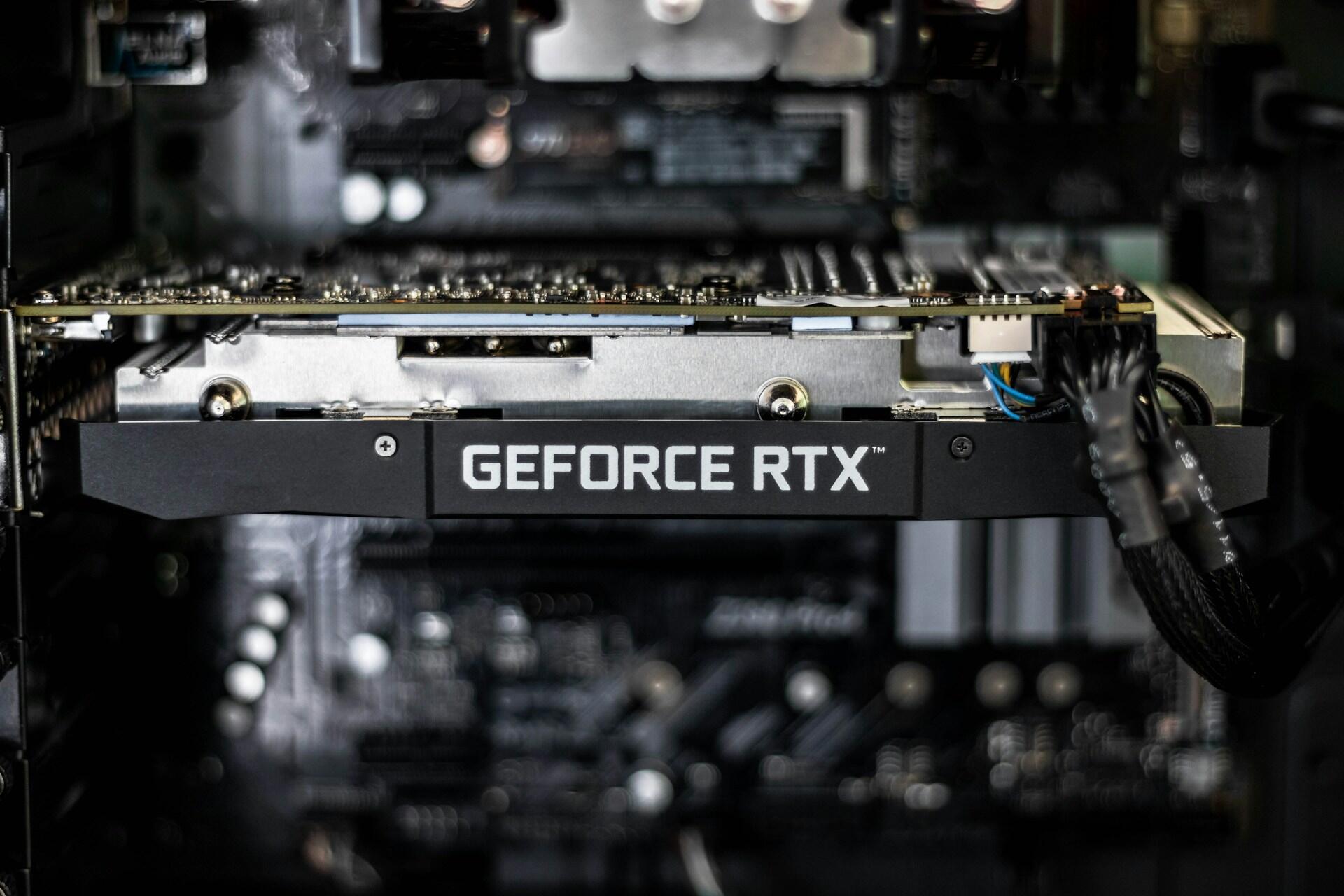
AutoCAD Crashes and Freezes
- Note when the crash happens (startup, opening a file, copy/paste, plotting) and whether it’s tied to one specific drawing file.
- Test with a blank drawing: open AutoCAD → start a new file → try common actions (zoom, pan, save) to confirm whether the issue is file-specific or system-wide.
- If it crashes on a particular DWG, move that file to a local folder (not a network location) and try opening it again.
- Check whether the crash coincides with graphics activity (screen flicker, redraw lag) or with opening/closing windows and menus.
- Write down your AutoCAD version, Windows version, and graphics card model so you can match fixes to your setup.⁵

AutoCAD Not Responding
- When “Not Responding” appears, wait 30–60 seconds to see if AutoCAD is processing a heavy task (large drawings can look frozen).⁷
- Open Task Manager and check Memory/CPU usage to confirm whether AutoCAD is resource-bound or genuinely stuck.⁷
- Try the same action in a new blank drawing to see if the problem is specific to a particular file.⁷
- If the hang occurs during copy/paste, test with a smaller selection or paste into a new file to isolate the problematic objects.⁴
- Track what you clicked immediately before the freeze (command, ribbon button, menu option) so you can reliably reproduce it.⁴
Performance Issues in AutoCAD
- Identify whether performance problems are graphics-related (laggy zoom/pan, choppy cursor, slow redraw).
- Confirm whether the drawing is unusually large/complex (many objects, xrefs, high-detail blocks, heavy hatches).
- If you work from a shared location, test opening the same File locally to check for a network bottleneck.⁶
- Note whether performance degrades over time (fine at launch, slow after hours), which can point to graphics settings or cache buildup.⁶
- Record whether Hardware Acceleration is on/off and whether your graphics driver is current.⁶
Troubleshooting AutoCAD Crashes and Freezing
If you find that when you're using AutoCAD, it crashes and freezes, you'll never get much done. These issues can occur during startup, while opening drawings, or when running commands. Run a structured AutoCAD troubleshooting process to isolate issues and determine whether they're related to software, hardware, or file integrity.

Update AutoCAD and System Drivers
- Save your work and close AutoCAD.
- Open the Autodesk Access app (or your Autodesk updater) and install the latest available AutoCAD updates/hotfixes.⁵
- Update Windows via Settings → Windows Update and restart.⁵
- Update your graphics driver from the manufacturer (NVIDIA/AMD/Intel), then reboot after installation.⁶
- Relaunch AutoCAD and test the same workflow that previously caused freezing (open the same drawing, run the same command).⁶
Verify Hardware Compatibility
- Check your workstation’s CPU/RAM/GPU against the requirements for your AutoCAD version.⁶
- In AutoCAD, open the Graphics Performance settings (Options/System area) and confirm the graphics system is recognised correctly.⁶
- Toggle Hardware Acceleration (on/off) and test zoom/pan performance to see which setting is stable on your hardware.⁶
- If you use dual graphics (integrated + dedicated), ensure AutoCAD is using the higher-performance GPU in your Windows graphics settings.⁶
- If stability improves only after switching settings, keep the stable option and document it as your baseline configuration.⁶

Repair or Recover Corrupted Drawing Files
- Make a copy of the DWG first (never troubleshoot the only copy).¹
- In AutoCAD, use File → Open, select the DWG, click the drop-down next to Open, and try Partial Open if available.⁸
- If the File still won't open, start a new blank drawing, type RECOVER (or RECOVERALL if xrefs are involved), and select the problem file.⁸
- After recovery, run AUDIT (fix errors when prompted) and save the drawing under a new name/version.¹
- If recovery fails, use Autodesk’s corruption guidance to decide whether to restore from a backup (BAK) or rebuild content into a clean file.¹
Resolving AutoCAD Not Responding Issues
When AutoCAD stops responding, it's likely struggling to process commands or system resources are being overwhelmed. Look to identify the cause of the issues so you can restore responsiveness. Here are some tips and tricks to reduce the likelihood of freezes or command failures.
Optimise System Resources
- Save and close any unnecessary apps (browsers with many tabs, heavy background tools, large PDF editors).⁷
- Open Task Manager and sort by Memory to identify which processes are consuming resources.⁷
- Restart AutoCAD and try the same action again to see if the hang was resource-related.⁷
- If the issue persists, test with a smaller drawing/file to confirm whether you’re hitting system limits.⁷
- If AutoCAD repeatedly hangs on startup or immediately after launch, follow Autodesk’s startup/freezing guidance (profile reset/reinstall pathways).²
Identify and Disable Conflicting Applications
- Close AutoCAD and reboot Windows (this clears “stuck” background services).⁷
- Temporarily disable or exit third-party tools that integrate with AutoCAD (PDF printers, antivirus deep-scan, overlay utilities).⁷
- Relaunch AutoCAD and repeat the same command sequence that previously caused the hang.⁷
- If the issue disappears, re-enable apps one at a time until the conflict returns (this pinpoints the culprit).⁷
- If copy/paste specifically triggers hangs, apply Autodesk’s copy/paste troubleshooting steps and retest.⁴
Clean Temporary Files
- Close AutoCAD.
- Run Disk Cleanup in Windows and remove temporary files (don’t delete personal files; keep it to temp/cache categories).⁷
- Clear out old AutoCAD temporary/cache locations if they’ve grown large (especially if crashes are tied to long sessions).⁷
- Restart Windows to ensure locked temp files are released.⁷
- Relaunch AutoCAD, then open the same drawing and repeat the action that previously froze.⁷
Enhancing AutoCAD Performance
Performance issues can cause AutoCAD to open drawings slowly, display graphics slowly, or process commands inefficiently. By optimising software settings, managing drawing complexity and AutoCAD blocks, and improving system configuration, you can improve workflow stability. As always, a comprehensive troubleshooting process will help.
Simplify Large or Complex Drawings
- Save a copy of the drawing so you can test the cleanup safely.⁵
- Use PURGE to remove unused blocks, layers, linetypes, and other unused objects that inflate file size.⁵
- If the drawing contains imported or messy geometry, use AUDIT to fix errors and reduce instability triggers.¹
- Consider splitting the drawing into smaller sections (separate files for heavy detail) and referencing them as needed.⁶
- Save as a new DWG version and compare performance (open time, zoom/pan smoothness).⁶
Reset AutoCAD Settings to Default
- Close all Autodesk applications.
- In Windows, open the Start menu and search for “Reset Settings to Default” for your AutoCAD version.²
- Run the reset tool and confirm you want to restore defaults (this resets user profile/settings that can cause freezing).⁷
- Reopen AutoCAD and test stability on a blank file first, then open your usual drawing files.⁷
- Re-apply custom settings gradually (one change at a time) to identify which option triggers issues.⁷
Address Network-Related Problems
- Test whether the issue happens only when opening/saving drawings on a shared drive or cloud-synced folder.⁶
- Copy the DWG to a local folder and work from the local copy to see if performance improves.⁶
- If local work is smooth, the issue is likely network latency, permissions, or sync conflicts.⁶
- Keep a “working local” process: work locally → save/version → copy back to the shared location when stable.⁶
- If crashes occur only with specific shared files, check for corruption or xref issues before returning them to the network location.⁵
References
- Autodesk. AutoCAD File Corruption. Autodesk Support, https://www.autodesk.com/support/technical/article/caas/sfdcarticles/sfdcarticles/AutoCAD-File-Corruption.html. Accessed 11 Feb. 2026.
- Autodesk. AutoCAD Freezes After Launch in Windows 10. Autodesk Support, https://www.autodesk.com/support/technical/article/caas/sfdcarticles/sfdcarticles/AutoCAD-freezes-after-launched-in-Windows-10.html. Accessed 11 Feb. 2026.
- Autodesk. AutoCAD Randomly Freezes or Hangs While Working. Autodesk Support, https://www.autodesk.com/support/technical/article/caas/sfdcarticles/sfdcarticles/AutoCAD-randomly-freezes-or-hangs-while-working-in-a-virtualized-environment.html. Accessed 11 Feb. 2026.
- Autodesk. Copy and Paste in AutoCAD Hangs or Crashes. Autodesk Support, https://www.autodesk.com/support/technical/article/caas/sfdcarticles/sfdcarticles/Copy-and-paste-in-AutoCAD-hangs-for-a-long-time-or-fails-to-work.html. Accessed 11 Feb. 2026.
- Autodesk. Freeze or Crash When Opening Drawings in AutoCAD. Autodesk Support, https://www.autodesk.com/support/technical/article/caas/sfdcarticles/sfdcarticles/Freeze-or-crash-when-opening-drawings-in-AutoCAD.html. Accessed 11 Feb. 2026.
- Autodesk. Graphics System Causes Slow Performance in AutoCAD. Autodesk Support, https://www.autodesk.com/support/technical/article/caas/sfdcarticles/sfdcarticles/Graphics-system-causes-slow-performance-in-AutoCAD.html. Accessed 11 Feb. 2026.
- Autodesk. Program Appears to Freeze or Hang During Startup. Autodesk Support, https://www.autodesk.com/support/technical/article/caas/sfdcarticles/sfdcarticles/Program-appears-to-freeze-or-hang-during-startup.html. Accessed 11 Feb. 2026.
- Autodesk. RECOVER Command Will Not Open File in AutoCAD. Autodesk Support, https://www.autodesk.com/support/technical/article/caas/sfdcarticles/sfdcarticles/RECOVER-command-will-not-open-file-in-AutoCAD.html. Accessed 11 Feb. 2026.
- Symetri. How to Repair Corrupt AutoCAD Files. https://www.symetri.us/insights/blog/how-to-repair-corrupt-autocad-files/. Accessed 11 Feb. 2026.
- Vagon. Common AutoCAD Crashes and How to Fix Them. https://vagon.io/blog/common-autocad-crashes-and-how-to-fix-them. Accessed 11 Feb. 2026.
Summarise with AI:
Did you like this article? Leave a rating!

 Loading...
